Flipping and Rotating Views
Items in the Flip/Rotate panel allow you to flip views horizontally or vertically. You can also rotate views 90-degrees clockwise and counter-clockwise or by a specified amount.
Flip/Rotate panel
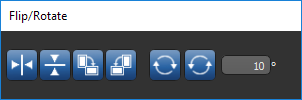
You can also flip and rotate views with the views pop-up menu (see 2D View Pop-Up Menu and 3D View Pop-Up Menu ).
 Flipping Views
Select the required view and then do one of the following:
- Click the Flip Horizontal
 button to flip the selected view horizontally. You can also right-click inside a view and then choose Flip/Rotate > Flip Horizontal.
 - Click the Flip Vertical
 button to flip the view vertically. You can also right-click inside a view and then choose Flip/Rotate > Flip Vertical.
Rotating Views
Select the required view and then do one of the following:
- Click the Rotate 90 Degrees
 button to rotate the display 90 degrees clockwise. You can also right-click inside a display and then choose Flip/Rotate > Rotate 90 Degrees CW.
 - Click the Rotate -90 Degrees
 button to rotate the display 90 degrees counter-clockwise. You can also right-click inside a display and then choose Flip/Rotate > Rotate 90 Degrees CCW.
Rotating Views by a Specific Amount
Do the following to rotate a view by a specific amount:
- Enter the number of degrees required in the Rotate edit box.
- Select the view you need to rotate and then click the Rotate Clockwise
 button or the Rotate Counter-Clockwise
  button.
Configured Actions for the Flip and Rotate Tools
A number of configured actions and keyboard shortcuts are available for using the Flip and Rotate tools. The default settings for these actions are listed in the following table.
| Action | Key | Mouse |
|---|---|---|
| Flip | ||
| Flip horizontal | - | - |
| Flip vertical | - | - |
| Rotate | ||
| Rotate 90 degrees counter-clockwise | - | - |
| Rotate 90 degrees clockwise | - | - |
See Configurable Actions for information about mapping shortcuts and mouse actions to the Flip and Rotate tools.
